Automatic bank sync is the whole reason a lot of people pick a budgeting app. So when the connection drops, the app goes from “it just works” to a chore you didn’t sign up for, and your budget fills up with gaps.
It’s a more common problem than most app listings would suggest. Here’s how a few recent reviewers described it:
“Every single day, the bank connection fails.” (Wallet by BudgetBakers)
“Constantly having to reconnect accounts and that process takes multiple attempts only to have accounts mislabeled or imported incorrectly.” (Copilot)
“Couldn’t get any of my accounts to link.” (Spendee)
I should say up front that I build Hunter Vault, which doesn’t connect to banks at all, so I’m biased toward manual tracking. But most people reading this want their sync working again, not a lecture. So the fixes come first, and the alternatives come at the end for anyone who’s had enough.
- Most disconnects come from a changed password, a new two-factor prompt, expired consent, or your bank changing how apps connect
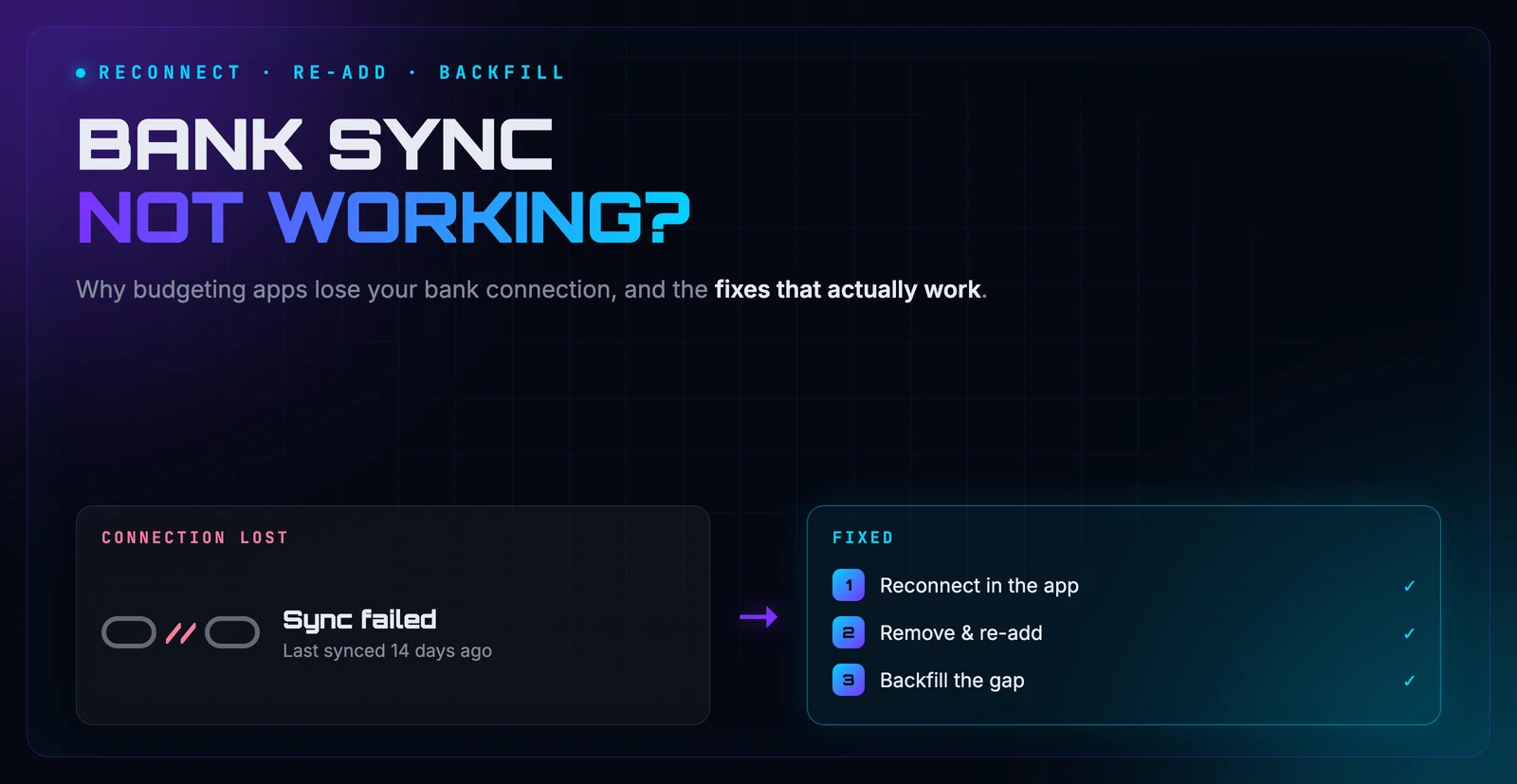
- Fix it in this order: reconnect in the app, check your bank's connected-apps settings, remove and re-add the account, then contact support
- Don't keep retrying a failed login, because too many attempts can lock your online banking
- If it breaks every few weeks, scheduled statement imports or manual logging are often less work than the fight
Quick answer
When a budgeting app loses your bank connection, it’s usually because your login changed, your bank asked for two-factor verification the app couldn’t complete, your consent expired, or the bank changed how it lets apps connect. Reconnect from inside the app first. If that fails, remove and re-add the account, then import a statement to fill in any missing days. If it keeps happening, switch that account to statement imports or manual tracking.
How bank sync actually works
Your budgeting app almost never talks to your bank directly. It goes through a data provider, often called an aggregator. In the US the common ones are Plaid, MX, and Finicity, and other countries have their own. The aggregator connects to your bank in one of two ways: through an official connection the bank provides, where you log in on the bank’s own page, or through your saved username and password on older setups.
That means there are three parties involved: your bank, the aggregator, and the app. A problem at any of them shows up in your app as “connection error,” which is why the message is usually so unhelpful.
Why the connection keeps breaking
- You changed your password or login. If the connection relies on your saved credentials, a password change breaks it until you update it in the app.
- Your bank asked for two-factor verification. The aggregator can’t approve a code sent to your phone on its own, so the connection stalls until you reconnect and complete it.
- Your consent expired. Many connections are only authorized for a set period. In the UK and EU, open-banking consent has traditionally needed renewing on a schedule, commonly every 90 days, so a connection can quietly expire even if nothing else changed.
- Your bank changed how apps connect. When a bank moves from saved-password connections to its own official login flow, existing connections often have to be set up again from scratch.
- Something is down. Banks and aggregators both have outages and maintenance windows. Sometimes the only fix is waiting a few hours.
- Your bank or account type isn’t well supported. Coverage drops off fast outside big banks in big markets. In many countries, including the Philippines, bank sync support is patchy, and e-wallets like GCash and Maya usually aren’t supported at all.
Fixes that actually work
Work through these in order. Most problems are solved by the first two.
1. Reconnect from inside the app. Most apps flag the broken account and offer a reconnect or “update credentials” button. Use it, and complete any two-factor prompt during the process. If your bank sends an approval request to its own app, approve it there.
2. Check your bank’s connected-apps settings. Many banks have a page in online banking that lists third-party apps with access to your account. If the budgeting app’s access was revoked or has expired, you can often renew it there.
3. Remove and re-add the account. This forces a completely fresh connection, and it fixes a lot of stubborn cases. Afterwards, check for duplicate transactions and any categories that were reset. Some apps handle this cleanly and some don’t, so export your data first if you’ve spent a long time categorizing.
4. Check for an outage. If several of your accounts broke at the same time, or the app’s support page mentions issues with your bank, give it a few hours before trying again.
5. Contact the app’s support. Send the bank’s name, the account type, and the exact error message. Support teams can often see errors from the aggregator that the app never shows you.
If reconnecting fails, don’t keep retrying your password. Too many failed attempts can lock your online banking, and then you have two problems instead of one. One reviewer described exactly this: accounts that wouldn’t link, followed by two-factor verification locking them out of their account.
Fill in the gap once sync is back
When a connection has been down for a while, reconnecting doesn’t always pull in everything you missed. Look at the last transaction the app imported, then fill in the days after it.
The quickest way is to download a CSV or statement for those dates from your bank and import it. How to import bank transactions into a budget app walks through it, and CSV vs PDF vs screenshot covers which format to use. If you’ve got weeks or months to catch up on, how to catch up on missed budget transactions has a step-by-step approach.
Once you’re done, compare the app’s balance with your bank’s balance. If they match, nothing was skipped or doubled.
When to stop fighting it
If sync works most of the time, the fixes above are worth the occasional hassle. But if you’re reconnecting every few weeks, or your bank simply isn’t supported well, it’s worth asking whether the automation is saving you any time at all.
There are two common alternatives. One is importing a statement on a schedule, such as every Sunday or at the end of each month. You get most of the convenience of sync without depending on a live connection. The other is logging spending yourself as it happens, which takes a few seconds per purchase and is a lot more reliable than it sounds. Why you don’t need to link your bank to budget makes the full case for that, and budgeting apps without bank linking compares the options. If uploading a statement makes you uneasy, is it safe to upload a bank statement to an app? covers what to check.
If you’re in the Philippines and your money lives in GCash, Maya, or local bank accounts, importing GCash, BPI, or BDO transactions is probably more useful than waiting for sync support.
And if your current app is one of the ones in the reviews above, I’ve compared each of them directly: Hunter Vault vs Wallet, Hunter Vault vs Copilot, and Hunter Vault vs Spendee. In a sample of Wallet’s 140 most recent Google Play reviews, 10 of the 25 one- and two-star reviews were about bank connections, more than any other complaint.
Where Hunter Vault fits
Hunter Vault doesn’t connect to your bank, so there’s no connection to break. You log spending yourself, and each entry earns XP and moves a quest forward, which is meant to make the habit easier to keep up.
If you don’t want to type everything, Smart Import reads a bank file and lets you review each transaction before anything is saved. CSV import is free. Importing from screenshots and PDFs uses Hunter Credits, which come with Hunter Pass, an optional subscription. The Hunter Pass guide explains how credits work.
The honest tradeoff is that nothing happens automatically. If you want completely hands-off tracking and your bank connects reliably, a sync app is still the better choice. Hunter Vault is for people who’d rather have a budget that never breaks than one that updates itself.
Frequently Asked Questions
Why does my budgeting app keep disconnecting from my bank?
The most common causes are a changed password, a new two-factor prompt the app can't complete on its own, consent that expired, or your bank changing how third-party apps connect. Bank or data-provider outages cause it too. Most of these need you to reconnect from inside the app.
How do I fix a bank connection that won't sync?
Start by reconnecting from inside the app and completing any two-factor prompts. If that fails, check your bank's settings for connected or third-party apps, then remove and re-add the account in the budgeting app. If it still fails, contact the app's support with your bank's name and the exact error message.
Will removing and re-adding my bank account delete my transactions?
Usually not, but it varies by app. Some apps keep your history and attach the new connection to it. Others import the same transactions again, which creates duplicates, or reset categories on re-imported items. Check for duplicates after reconnecting, and export your data first if you're worried.
How do I fill in transactions that were missed while sync was down?
Download a statement or CSV export for the missing dates from your bank and import it, or log the missing transactions by hand. Compare totals against your bank balance afterwards to make sure nothing was skipped or doubled.
Is it better to stop using bank sync?
Only if it keeps breaking or your bank isn't supported well. If sync works most of the time, the fixes above are worth it. If you're reconnecting every few weeks, importing a statement on a schedule or logging spending by hand is often less work than fighting the connection.