- Uploading a statement shares one read-only file you chose — not your bank login or ongoing account access
- Safety depends on the app: look for a clear privacy notice, on-device CSV processing, local PDF-password handling, and a review step
- Your online banking password is never needed to upload a statement; any app that asks for it is a red flag
- CSV is the most private method because it can be processed entirely on your device with nothing uploaded
- Uploading a file is fundamentally lower-exposure than linking your bank, which grants standing access to your account
You want to import a statement to catch up on your budget, but a small alarm goes off: is it actually safe to hand a bank statement to an app? It’s a fair question, and the honest answer is “it depends” — on the app, the method, and what happens to the file after you upload it.
This guide breaks down what actually happens when you upload a statement, where the real risks are (and aren’t), and how to tell a trustworthy importer from one you should avoid.
Quick Answer: Is It Safe?
Uploading a bank statement can be safe, and it’s structurally lower-risk than the alternative most apps push — linking your bank account. Here’s the key distinction:
When you link your bank, you grant a third party standing, ongoing read access to your account through a live connection that keeps refreshing. When you upload a statement, you share one read-only file, once, with no login and no continued access.
A single shared document is a smaller exposure than an open door to your account. But “smaller” isn’t “zero,” so the safety of uploading comes down to how a specific app handles that file. Let’s look at what actually happens to it.
What Actually Happens When You Upload a Statement
Depending on the file type, one of two very different things happens:
A CSV export is structured data — rows and columns your app can read directly. Because it doesn’t need AI to interpret an image or document, a well-built app processes it entirely on your device. Nothing is uploaded to any server. The data never leaves your phone.
A screenshot or PDF is unstructured — it needs AI to visually read the numbers and text. That means the file is sent to a server for processing. The transactions are extracted and returned to your app, and a responsible service deletes the file afterward rather than keeping it.
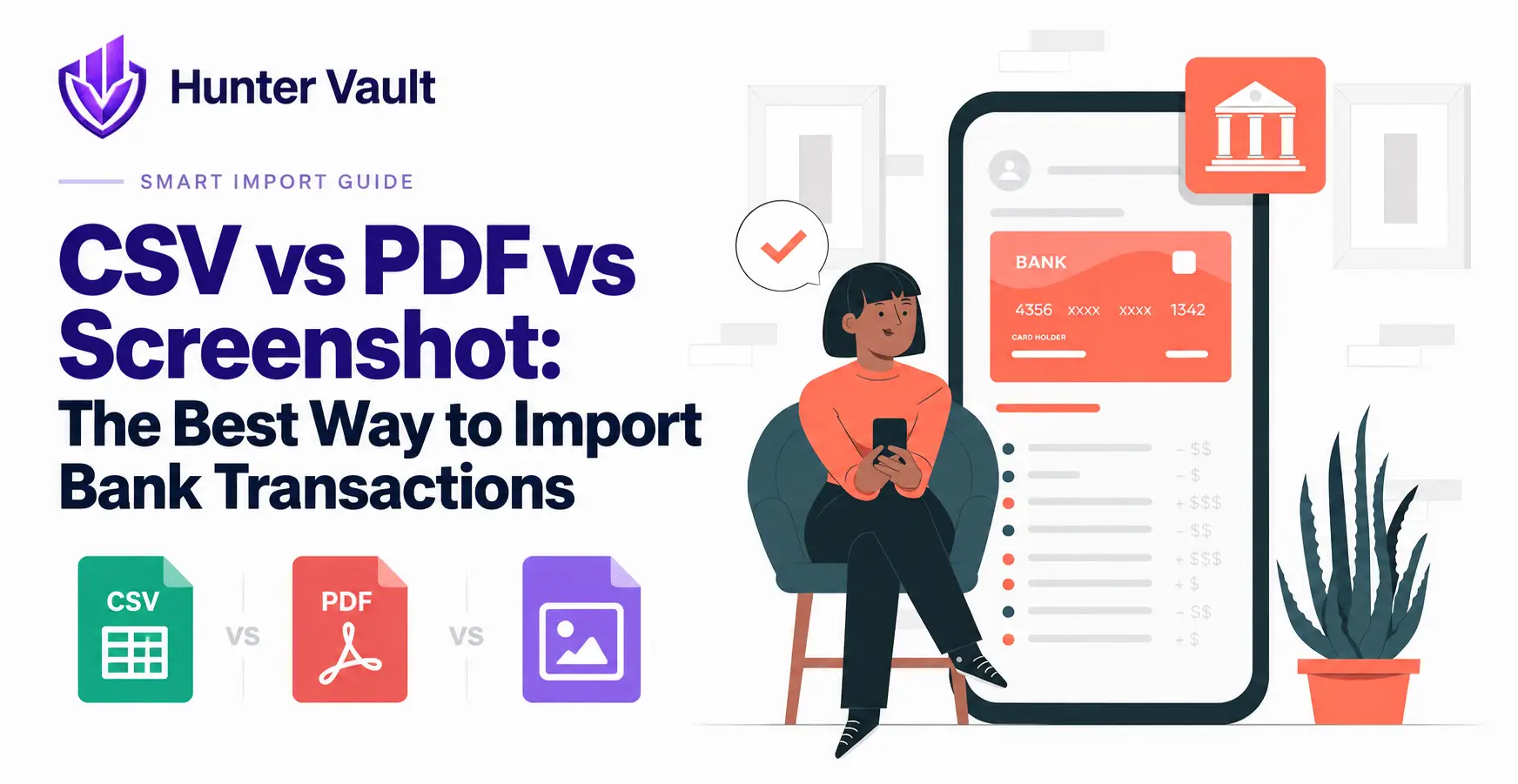
So the honest picture: CSV stays local; screenshots and PDFs are uploaded for reading. Both avoid your bank login entirely. The method you choose sets your privacy level, which is why CSV is the most private way to import when your bank offers it.
Many bank statement PDFs are password-protected. A safe importer has you enter that password on your own device to unlock the file locally — the password itself is never sent anywhere, only the readable content. If an app asks you to type a statement password into a form that transmits it to a server, don’t.
Where the Real Risks Are
Let’s be specific about what could actually go wrong, so you can judge an app clearly rather than on vague unease.
Risk 1: The file is stored instead of deleted. If an app uploads your statement and keeps it indefinitely, that’s a growing pile of your financial data sitting somewhere. Safe apps delete uploaded files after reading them.
Risk 2: There’s no clear privacy notice. If an app can’t tell you plainly what it uploads and what stays local, you can’t make an informed choice. Vagueness is itself a warning sign.
Risk 3: The app asks for your bank login. This is the big one. Reading a statement file never requires your online banking credentials. An app that asks for them is doing something you didn’t sign up for.
Risk 4: No review step. If transactions import straight into your history with no chance to review, you can’t catch errors — and you’re trusting the extraction blindly.
Notice what’s not on this list: your bank password being exposed by a legitimate statement upload. That doesn’t happen, because uploading a file and entering a bank login are entirely different actions.
How to Tell a Safe Importer From a Sketchy One
Here’s a practical checklist you can run through before you upload anything:
| Look for | Why it matters |
|---|---|
| Plain-language privacy notice | You know what’s uploaded before you commit |
| On-device CSV processing | Your most private option keeps data on your phone |
| Local PDF-password unlocking | Your password never travels |
| Files deleted after reading | Your data doesn’t pile up on a server |
| A review step before saving | You confirm what gets kept; nothing is blind |
| No online banking login requested | Reading a file never needs your bank credentials |
An importer that hits all six is handling your data responsibly. Hunter Vault’s Smart Import covers most of them: a privacy notice you acknowledge first, CSV processed entirely on-device, PDF passwords entered locally, and every transaction shown as an editable draft you review before anything saves. Screenshot and PDF imports do need sign-in and are read by Google’s Gemini.
The reason a lot of people prefer importing over bank-linking is simple: it shares less. A file is a snapshot you control; a bank connection is ongoing access. If keeping your financial data to yourself matters to you, importing fits the same philosophy as budgeting that never touches your bank.
What About Apps That Don’t Upload Anything?
The lowest-exposure option of all is an app that keeps everything on your device by default. If you never want a file leaving your phone, two things help:
- Prefer CSV import, which is processed locally and uploads nothing.
- Choose a privacy-first tracker that stores your data on-device rather than in the cloud.
This is the approach behind private, offline budgeting: your records live on your phone by default, not on a server. You can still catch up via CSV import without that data ever going anywhere. For the fuller landscape of tools built this way, see the best budget apps that import without bank sync.
The tradeoff is that screenshots and PDFs do need to be read by AI, so if you use those methods, some upload is unavoidable. That’s a reasonable trade for the convenience — as long as the app deletes the file afterward and you understand what you’re sharing.
This is general educational content about data-handling practices, not financial or security advice. Practices vary by app and change over time — always read a tool’s current privacy information before uploading anything. If you’re unsure, prefer methods that keep data on your device.
Final Takeaway
Uploading a bank statement isn’t inherently risky, and it’s structurally safer than linking your bank, because you’re sharing one file instead of granting ongoing access. The safety lives in the details: a clear privacy notice, on-device CSV processing, local password handling, file deletion, and a review step.
Run any app through that six-point checklist before you upload. If it passes, importing a statement is a reasonable, low-exposure way to catch up. If it’s vague or asks for your bank login, walk away — and reach for a CSV import that never leaves your phone instead.
Frequently Asked Questions
Is it safe to upload a bank statement to a budgeting app?
It can be, depending on the app and the method. Uploading a statement shares one read-only file you chose — not your bank login or ongoing account access. The safety comes down to how the app handles that file: whether it says clearly what’s uploaded, processes what it can on-device, deletes files after reading, and lets you review everything before it saves. A CSV processed entirely on your device is the lowest-risk option because it never leaves your phone.
What’s the difference between uploading a statement and linking my bank?
Linking your bank gives a third party standing, ongoing read access to your account through a live connection. Uploading a statement is a one-time handoff of a single file with no credentials and no continued access. If the app disappeared tomorrow, a linked connection would still have had access to your account history; an uploaded file is just a document you shared once.
Can an app see my bank password if I upload a statement?
No. Uploading a statement file never involves your online banking password. Even for password-protected PDFs, a well-designed app has you unlock the file on your own device, so the password is used locally and never transmitted. If any app asks you to enter your online banking login to “read” a statement, that’s a serious red flag.
What should I look for in a safe statement importer?
Four things: a clear, plain-language privacy notice before you upload; on-device processing for CSV files; local handling of PDF passwords; and a review step so you confirm what gets saved. Bonus points if the app deletes uploaded files after reading them and doesn’t require an account. If any of these are missing or vague, be cautious.
Is uploading a CSV safer than uploading a PDF or screenshot?
Usually yes. A CSV is structured data that can be read entirely on your device, so nothing has to be uploaded at all. PDFs and screenshots need AI to interpret them, which means the file is sent for processing. All three avoid your bank login, but CSV keeps the data on your phone, making it the most private of the three.