Smart Import

Import months of transactions

in one step

Stop entering old transactions one by one. Upload a bank screenshot, PDF statement, or CSV export — AI reads it, extracts every transaction, and you review before a single thing saves.

  • Hunter Pass Required
  • CSV always free
  • Review before saving
  • Private by design
Smart Import extraction screen showing transactions extracted from a bank statement screenshot
Smart Import
// at a glance

Everything Smart Import covers

Screenshot import

Upload a PNG or JPG; AI reads the image and extracts every transaction.

PDF statement

Up to 30 pages analyzed by AI — handles multi-page monthly statements.

CSV export

Processed entirely on-device — nothing uploaded, always free.

Review before save

Every transaction is an editable draft — nothing saves until you confirm.

Duplicate detection

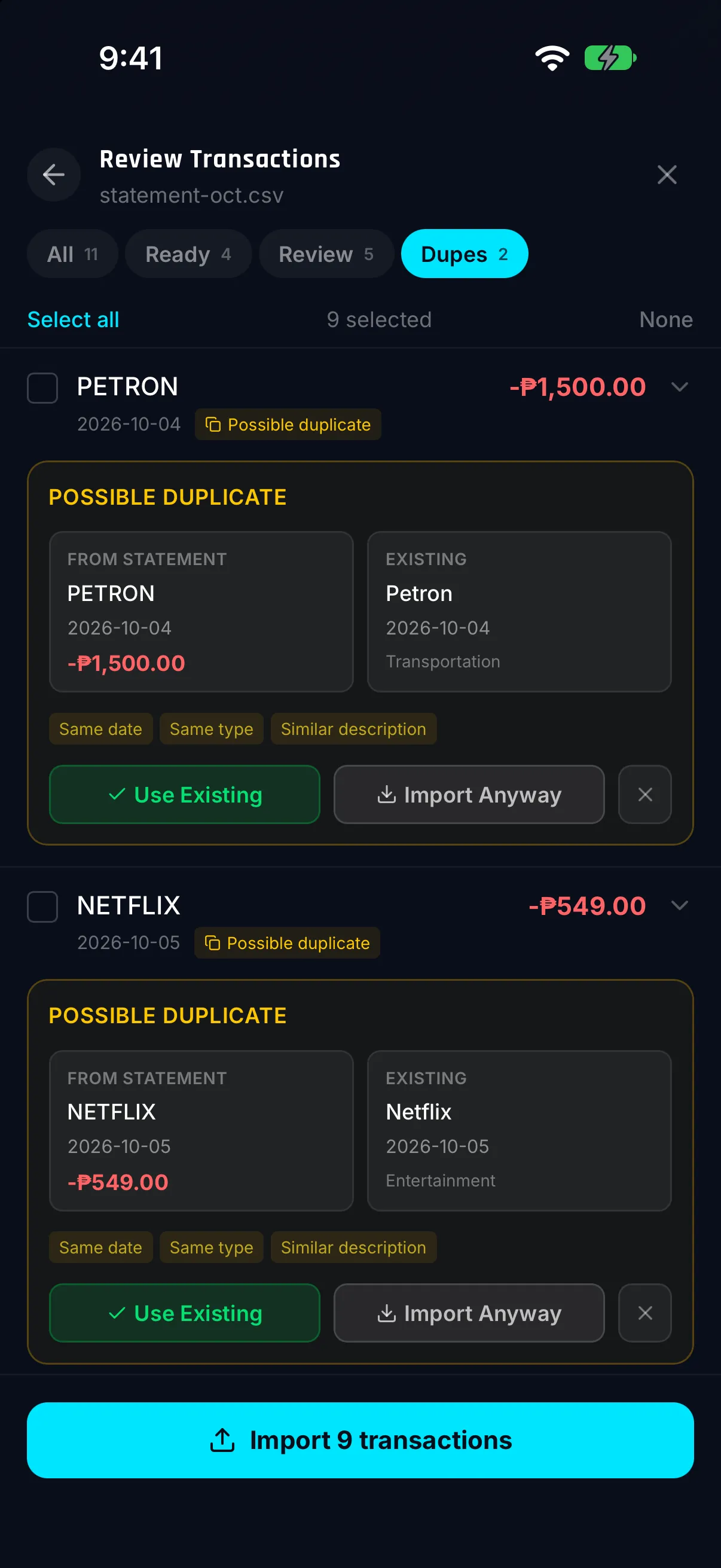
Filter to Duplicates tab and deselect rows already in your history.

Loot burst result

A results screen shows imported, skipped, and failed counts with totals.

// how it works

From file to transactions in six steps

  1. 1

    Pick your account

    Select which Hunter Vault account the transactions belong to.

  2. 2

    Choose your source

    Screenshot (PNG/JPG), PDF bank statement (up to 30 pages), or CSV export.

  3. 3

    Acknowledge the privacy notice

    A plain-language notice explains exactly what gets uploaded and what stays local. You must confirm before continuing.

  4. 4

    Upload or select your file

    For image and PDF: a credit-cost dialog shows the estimated Hunter Credits spend before committing. Enter a PDF password on-device if needed — it is never sent anywhere.

  5. 5

    AI extracts your transactions

    A scan-beam animation tracks real-time stages: Preparing → Uploading → AI Analyzing → Reading Transactions.

  6. 6

    Review, edit, and confirm

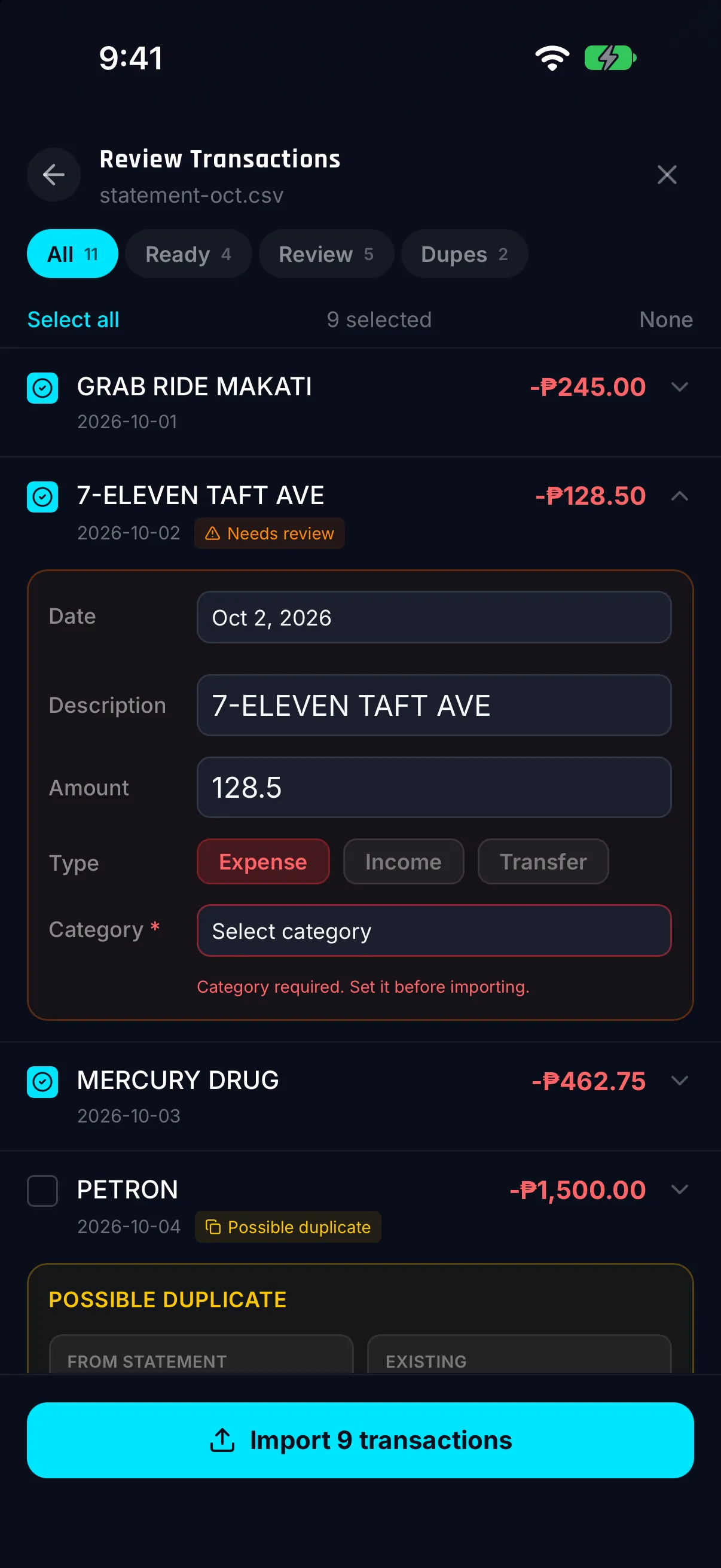
    Filter by All / Ready / Needs Review / Duplicates. Edit any row, deselect what you do not want, then import in one tap.

// three import paths

Pick the source that fits your bank

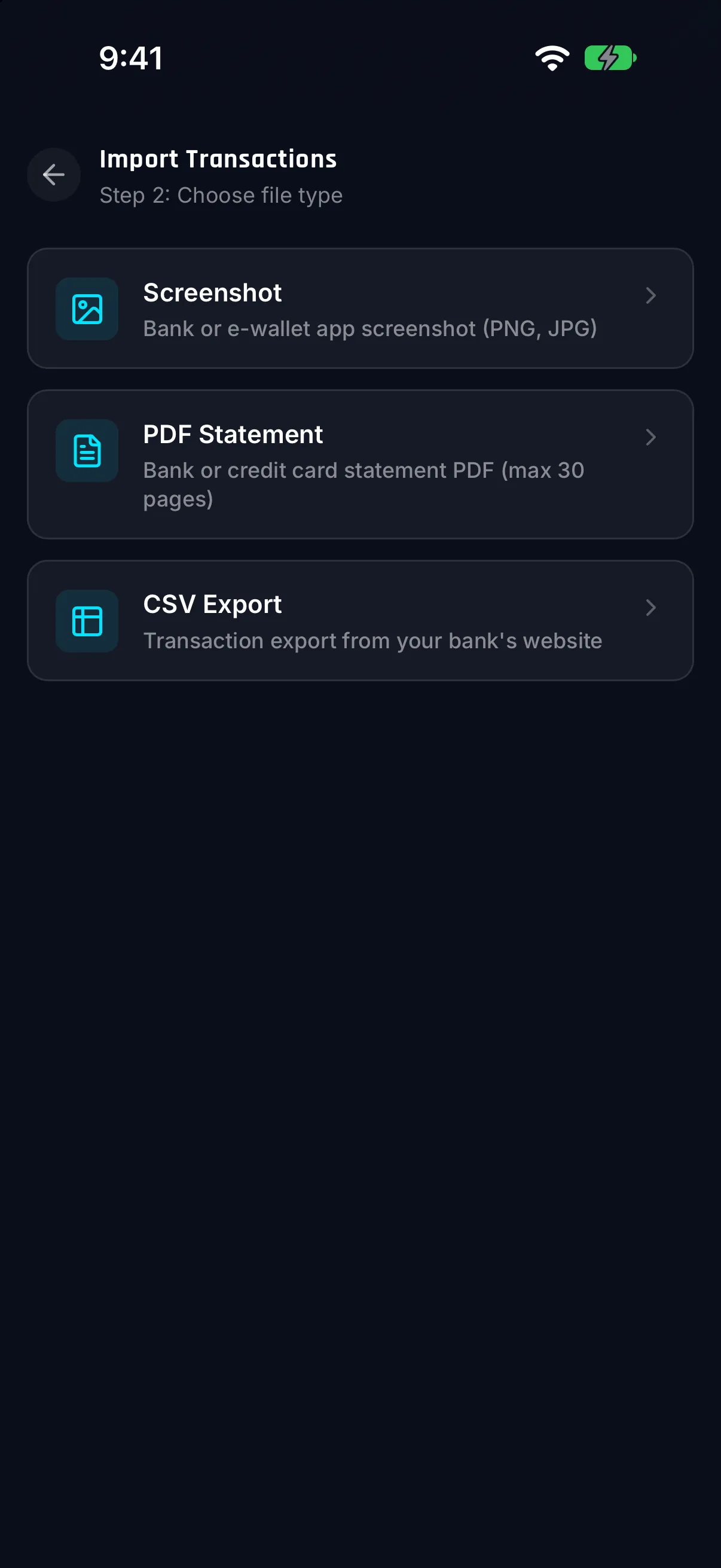
Not every bank offers the same export options. Smart Import gives you three paths so you can work with whatever your bank provides. CSV imports are always free — they never leave your device. Screenshot and PDF imports use Hunter Credits for AI processing, with the cost shown before you commit.

  • Screenshot — snap a PNG or JPG of your bank app statement
  • PDF — upload up to 30 pages of a bank statement PDF
  • CSV — export from your bank and map columns on-device for free
  • Credit cost shown before any upload starts
Smart Import source selection screen showing Screenshot, PDF, and CSV options
// review before you commit

Every transaction is a draft until you say so

The review screen shows every extracted transaction as an editable card. Use the filter tabs to focus on what matters: All for the full list, Ready for clean extractions, Needs Review for anything the AI flagged, and Duplicates for transactions already in your history. Edit amounts, dates, or descriptions inline — then select exactly what you want and confirm.

Nothing reaches your expense history or affects your budget until you tap the final import button.

Smart Import review screen with filter tabs: All, Ready, Needs Review, Duplicates
// after the import

Ask Huntee about what you just imported

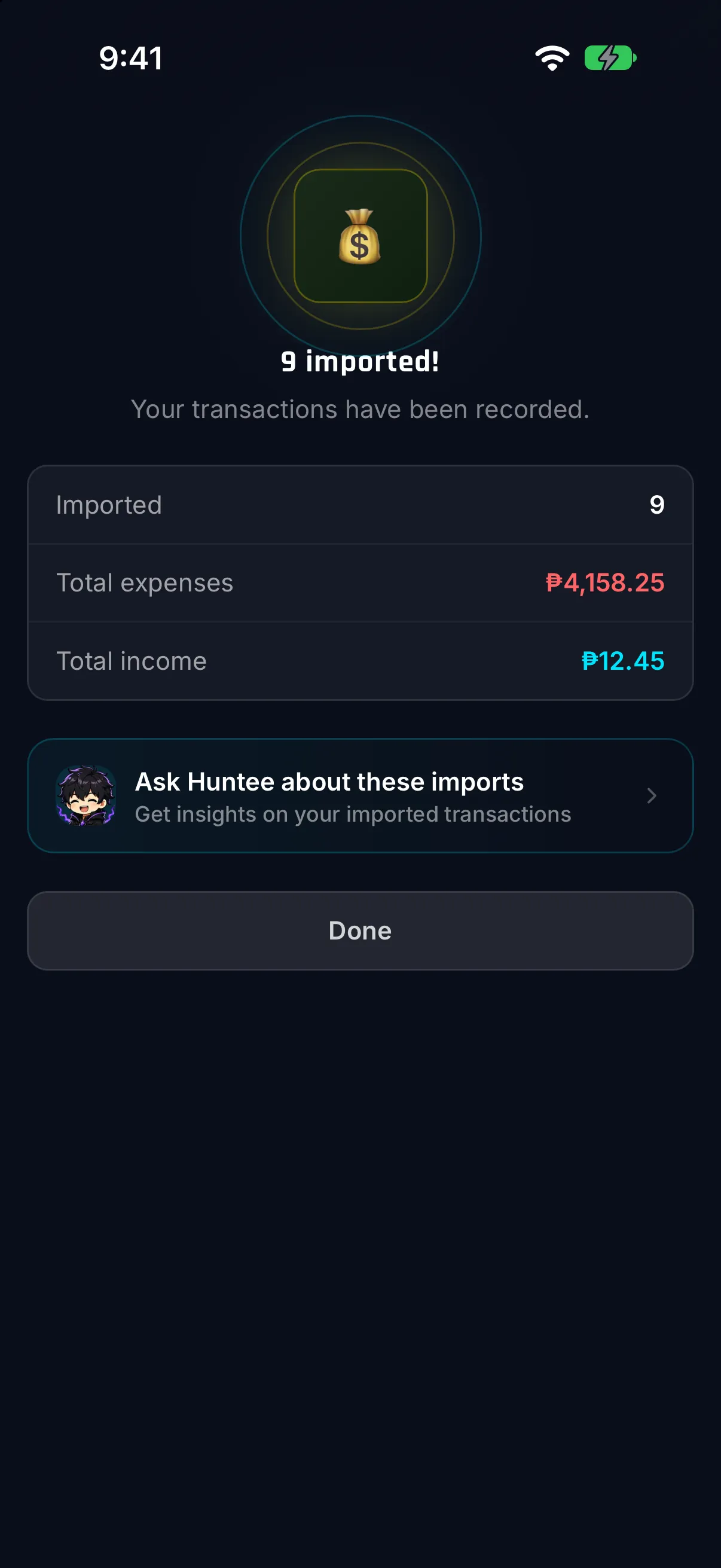
After the import completes, a loot-burst result screen shows exactly what landed — how many transactions were imported, how many were skipped as duplicates, and any that failed. From there, a Huntee entry card lets you immediately ask "What were my biggest expenses last month?" — turning a bulk catch-up into a financial insight in seconds.

Smart Import result screen showing loot-burst animation with imported, skipped, and failed transaction counts

Loot-burst summary

A results animation shows imported, skipped, and failed counts plus total expenses and income.

Immediate insights

The result screen surfaces a Huntee entry card so you can ask follow-up questions right away.

Catch-up in minutes

Import a full month of missed transactions and have your history complete before your next session.

// privacy & access

Transparent about what leaves your device

Privacy notice required

You must acknowledge what is uploaded before the process starts.

CSV stays on your device

CSV files are never uploaded — processed entirely locally and always free.

PDF passwords never leave your device

The password is entered locally; only the unlocked content is sent.

Credit cost shown upfront

You see the estimated credit spend before any upload begins.

No bank login required

Import from a file export — no credentials, no open banking.

Hunter Pass required

Image and PDF imports are exclusive to premium subscribers.

// questions

Frequently asked questions

Smart Import lets you load weeks or months of bank transactions into Hunter Vault in one step — from a screenshot, a PDF bank statement, or a CSV export — instead of entering them one by one.

Yes. CSV files are processed entirely on your device — nothing is uploaded — so CSV import is always free and does not use Hunter Credits.

Screenshot and PDF files are uploaded to a secure server for AI analysis, then discarded. A plain-language privacy notice explains exactly what is uploaded and what stays local. You must acknowledge this before proceeding.

If your bank statement is password-protected, you enter the password on your device before anything is sent. The password itself is never uploaded or stored — only the unlocked content is processed.

Yes. Smart Import is a Hunter Pass exclusive. Screenshot and PDF imports use Hunter Credits; CSV is always free regardless of plan. Non-subscribers can preview a blurred mock of the extraction result before upgrading.

Every extracted transaction appears as an editable draft on the Review screen before anything is saved. You can edit amounts, descriptions, or dates, deselect rows you do not want, and filter by All, Ready, Needs Review, or Duplicates — then confirm only what looks right.

Catch up on months of spending in minutes.

Upload a screenshot, PDF, or CSV — Smart Import extracts every transaction, you review and confirm. Upgrade to Hunter Pass to unlock it.

  • Hunter Pass Required
  • CSV always free
  • Private by design
Explore all features
Smart Import extraction complete screen in Hunter Vault