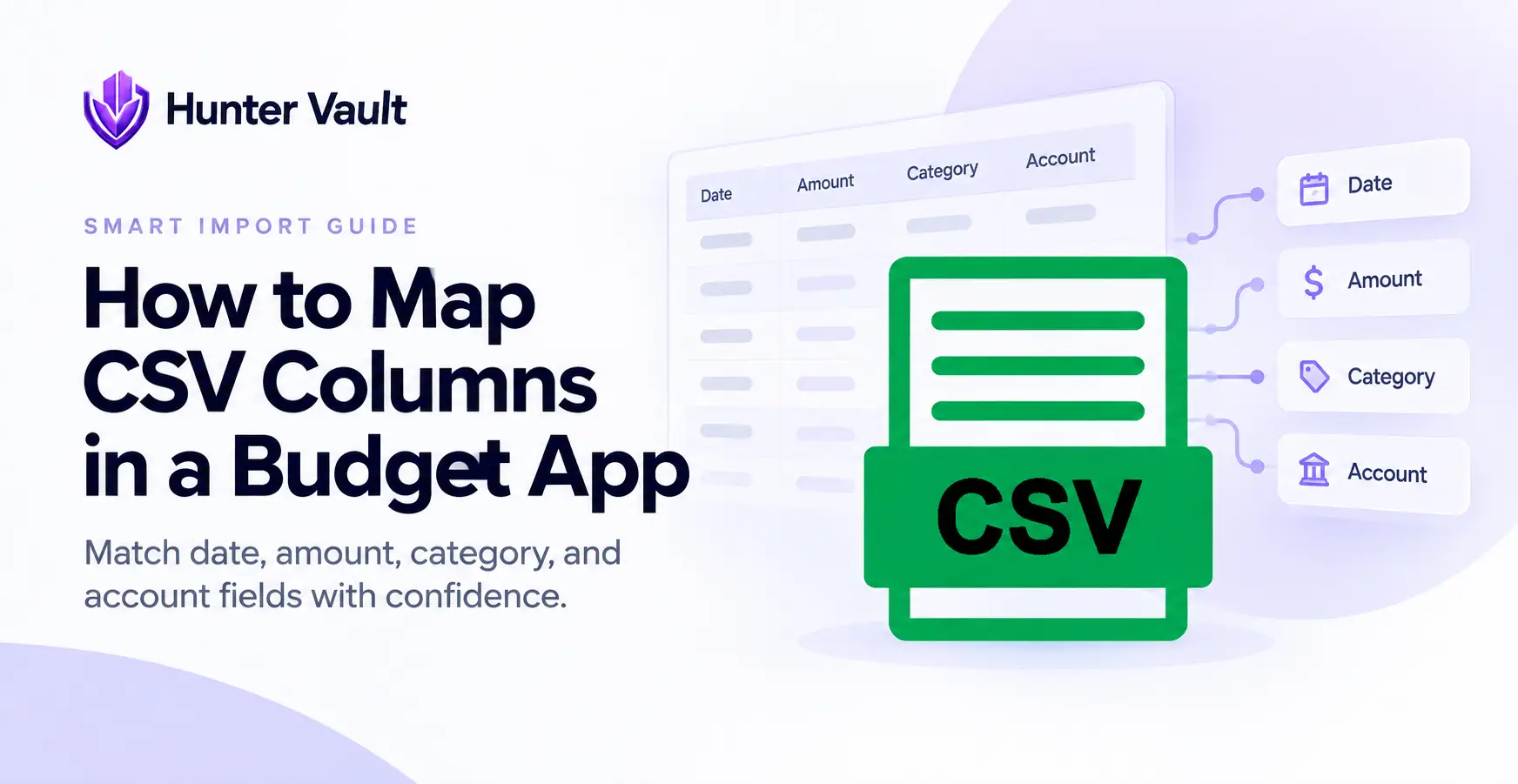
- Column mapping matches your bank's CSV headers to the app's fields: date, amount, and description
- Every bank labels columns differently, so you map once — most apps remember the format afterward
- Watch for the three common gotchas: separate debit/credit columns, wrong amount signs, and date-format mismatches
- Spot-check a few transactions after importing to confirm the mapping worked
- CSV is the most private import method, and mapping is the small setup cost that comes with it
CSV is the most private way to import transactions — it can be processed entirely on your device — but it comes with one small setup step that stops some people cold: column mapping. Your bank’s file has columns with names like “Posting Date” and “Withdrawal Amount,” and the app needs to know which is which.
It sounds technical. It isn’t. This is a short tutorial on mapping CSV columns correctly, plus fixes for the three issues that cause almost every CSV import problem.
What Column Mapping Actually Is
A CSV is a spreadsheet: rows of transactions, columns of details. The problem is that no two banks agree on what to call those columns or what order to put them in. One bank’s “Transaction Date” is another’s “Date Posted”; one uses a single “Amount,” another splits “Debit” and “Credit.”
Column mapping is you telling the app, once, which column means what. At minimum, apps need three things:
- Date — when the transaction happened
- Amount — how much
- Description — what it was (the merchant or memo)
Match those, and the app knows how to read every row. It’s covered as part of the broader CSV import flow, but because it’s the one step people get stuck on, it’s worth its own walkthrough.
How to Map Columns, Step by Step
Open your CSV and look at the headers
Before importing, open the file (or just glance at the first row) to see what your bank named its columns. You’re looking for the date, the amount, and the description or merchant.
Start the CSV import
In your budget app, choose CSV as the source and select your file. A mapping screen appears showing your file’s columns on one side and the app’s fields on the other.
Match date, amount, and description
Point the app’s “Date” field at your bank’s date column, “Amount” at the amount column, and “Description” at the merchant or memo column. This is the whole core of mapping.
Confirm the date format
If the app asks, set the date format to match your file (DD/MM/YYYY, MM/DD/YYYY, or YYYY-MM-DD). This one setting prevents the most common CSV error.
Preview and import
Most apps show a preview of the first few mapped rows. Check that dates, amounts, and descriptions line up, then import — and review the result as you would any import.
In Smart Import, this mapping happens on-device, so your CSV data never leaves your phone during the process.
Fix 1: Separate Debit and Credit Columns
Some banks don’t use one signed amount column. Instead they split money out and money in into two: a “Debit” (or “Withdrawal”) column and a “Credit” (or “Deposit”) column.
If your app supports it, map both — debit becomes expenses, credit becomes income. If your app only accepts a single amount column, you’ll need to combine them first in a spreadsheet:
- Make a new “Amount” column.
- Put debit values as negative numbers and credit values as positive.
- Map that combined column as the amount.
Before you start mapping, notice whether your file has one amount column or two. Spotting separate debit/credit columns upfront saves you from an import where everything looks like income or everything looks like an expense.
Fix 2: Wrong Amount Signs
A close cousin of the debit/credit issue: your expenses import as income, or vice versa. This is a sign-convention mismatch.
Banks disagree on how to show spending. Some use negative numbers for money out; some put money out in a positive “debit” column. If your imported spending shows up as positive income, the app is reading the sign the opposite way your bank wrote it.
The fix depends on your file:
- Signed amount column? Confirm the app treats negatives as expenses (most do).
- Separate debit/credit columns? Map each to the correct type rather than relying on the sign.
Always spot-check after importing: if a purchase you know was money out shows as money in, fix the mapping and re-import.
Fix 3: Date Format Mismatches
This is the single most common CSV problem, and the most confusing when it happens, because the numbers look plausible.
Banks use different date orders: DD/MM/YYYY, MM/DD/YYYY, or the international YYYY-MM-DD. If the app assumes the wrong order, days and months swap — 03/07 becomes July 3rd instead of March 7th. For any day numbered 12 or lower, the error is invisible at a glance.
To avoid it:
- Set the date format explicitly during mapping if the app lets you.
- Spot-check a known transaction after importing — find one you remember and confirm its date is right.
- Watch the start and end of the period — if your statement covers one month but the imported dates span two, the format is likely swapped.
A swapped date format doesn’t throw an error — it just quietly files transactions in the wrong month. That’s why spot-checking dates after a CSV import matters more than checking amounts, which at least look obviously wrong when they break.
You Usually Only Map Once
Here’s the reassuring part: mapping is typically a one-time cost per bank. Most import tools remember your mapping for a given file format, so the next time you import a CSV from the same bank, the columns are already matched and you skip straight to the preview.
You’ll only remap if you switch banks or your bank changes its export layout. So the small effort of getting the mapping right the first time pays off on every future import — which is part of what makes CSV the most repeatable method once it’s set up. For how it compares to the other methods, see CSV vs PDF vs screenshot.
This is general educational content, not financial advice. CSV formats and mapping features vary by bank and app. If you’re dealing with serious debt or financial hardship, consider speaking with a qualified financial professional.
Final Takeaway
Column mapping is the one bit of setup CSV asks for, and it’s simpler than it looks: match date, amount, and description, confirm the date format, and preview before importing. Keep an eye on the three gotchas — split debit/credit columns, amount signs, and date formats — and spot-check a few transactions afterward.
Get the mapping right and the rest of the import is quick and clean. Ready to try it? Import a CSV with Smart Import.
Frequently Asked Questions
What is CSV column mapping?
Column mapping is telling the app which column in your bank’s CSV file corresponds to which field it needs — usually date, amount, and description. Because every bank labels and orders its columns differently, the app can’t always guess, so you match them once. After mapping a given bank’s format, most apps remember it for future imports.
How do I handle separate debit and credit columns?
Some banks split money out and money in into two columns (like “Debit” and “Credit”) instead of using one signed amount column. Good import tools let you map both — debit as expenses, credit as income. If yours only accepts a single amount column, you may need to combine them in a spreadsheet first, making withdrawals negative and deposits positive.
Why are my CSV amounts importing as the wrong sign?
Banks disagree on how to represent spending — some use negative numbers for money out, others use positive numbers in a “debit” column. If your expenses are showing as income or vice versa, the sign convention is mismatched. Check whether your file uses a signed amount or separate debit/credit columns, and map accordingly.
My dates imported incorrectly — how do I fix CSV date formats?
Date format mismatches are the most common CSV problem. Banks use DD/MM/YYYY, MM/DD/YYYY, or YYYY-MM-DD, and if the app assumes the wrong one, days and months get swapped. Set or confirm the date format during mapping to match your file. If your app auto-detects, spot-check a few dates after import to be sure.
Do I have to map columns every time I import a CSV?
Usually only the first time for each bank. Most import tools save your mapping for a given file format, so subsequent imports from the same bank skip the step. If you switch banks or your bank changes its export format, you’ll map again.