- Import-based budget apps let you load transactions from a CSV, PDF, or screenshot — no bank login required
- CSV processed on-device is the most private option; screenshots and PDFs are uploaded for AI reading
- These apps work with any bank that can produce a file, so they're ideal when bank-sync apps don't support your bank
- Look for the import methods you'll use, a privacy notice, a review step, and duplicate detection
- Import power alone won't build the habit — pairing it with progress tracking or gamification helps it stick
Not everyone wants to hand a budgeting app their bank login. Maybe your bank isn’t supported, maybe your app’s bank sync keeps disconnecting, maybe you use an e-wallet, or maybe you just don’t want a third party holding standing access to your account. Whatever the reason, a set of budget apps now let you import transactions from a file instead — no connection required.
This roundup compares the main options on what actually matters: which import methods they support, how private each is, and what they cost. The goal is to help you match a tool to how you bank, not to crown one universal winner.
What “Import Without Bank Sync” Actually Means
Before the comparison, a quick definition, because the phrase gets used loosely.
Bank sync connects your account through a live data feed. Transactions appear automatically, but a third party holds ongoing read access to your account.
Import without sync means you bring a file — a CSV export, a PDF statement, or a screenshot — and the app reads the transactions from it. There’s no login, no standing access, just a one-time handoff of data you chose to share. It’s the file-based cousin of budgeting without linking your bank, and sits alongside the broader roundup of budgeting apps without bank linking.
The privacy difference is real: a synced connection is an open door; an imported file is a snapshot. That’s the whole appeal for the people who seek these apps out — and there are a lot of them. In a Harris Poll for the Financial Technology Association, more than two-thirds of users (68%) said they were uncomfortable with the level of access financial apps have to their data (Banking Dive, retrieved 2026-09-01).
What to Look For
The apps below differ, but the checklist for judging any of them is the same:
- The import methods you’ll use — CSV, PDF, screenshot, or all three
- On-device processing for CSV — the most private option keeps data on your phone
- A clear privacy notice — you should know what’s uploaded before you commit
- A review step — editable drafts before anything saves, so you catch misreads
- Duplicate detection — so overlapping imports don’t clutter your history
- Habit support — progress tracking or gamification, if consistency is your real challenge
Keep that list handy as you read. The “best” app is the one that covers the methods your bank supports and the habit help you personally need.
The Options Compared
Here’s how the notable import-capable, no-sync-required tools line up. Details and pricing change, so treat this as a starting map and verify current specifics on each app before you commit.
| App | Screenshot | CSV | Notable angle | |
|---|---|---|---|---|
| Hunter Vault | Yes | Yes | Yes | All three methods + review + gamified habit layer |
| BudgetLabs | Yes | Yes | Yes | AI statement import, no bank credentials |
| Skwad | No | Yes | Yes | PDF-to-data extraction, deletes files after reading |
| Lunch Money | No | Yes | Yes | CSV/PDF import (also offers optional sync) |
| Koody | No | No | Yes | CSV cleanup, dedup, batch editing |
| Finny | Yes | No | Yes | Screenshot and receipt capture, fast logging |
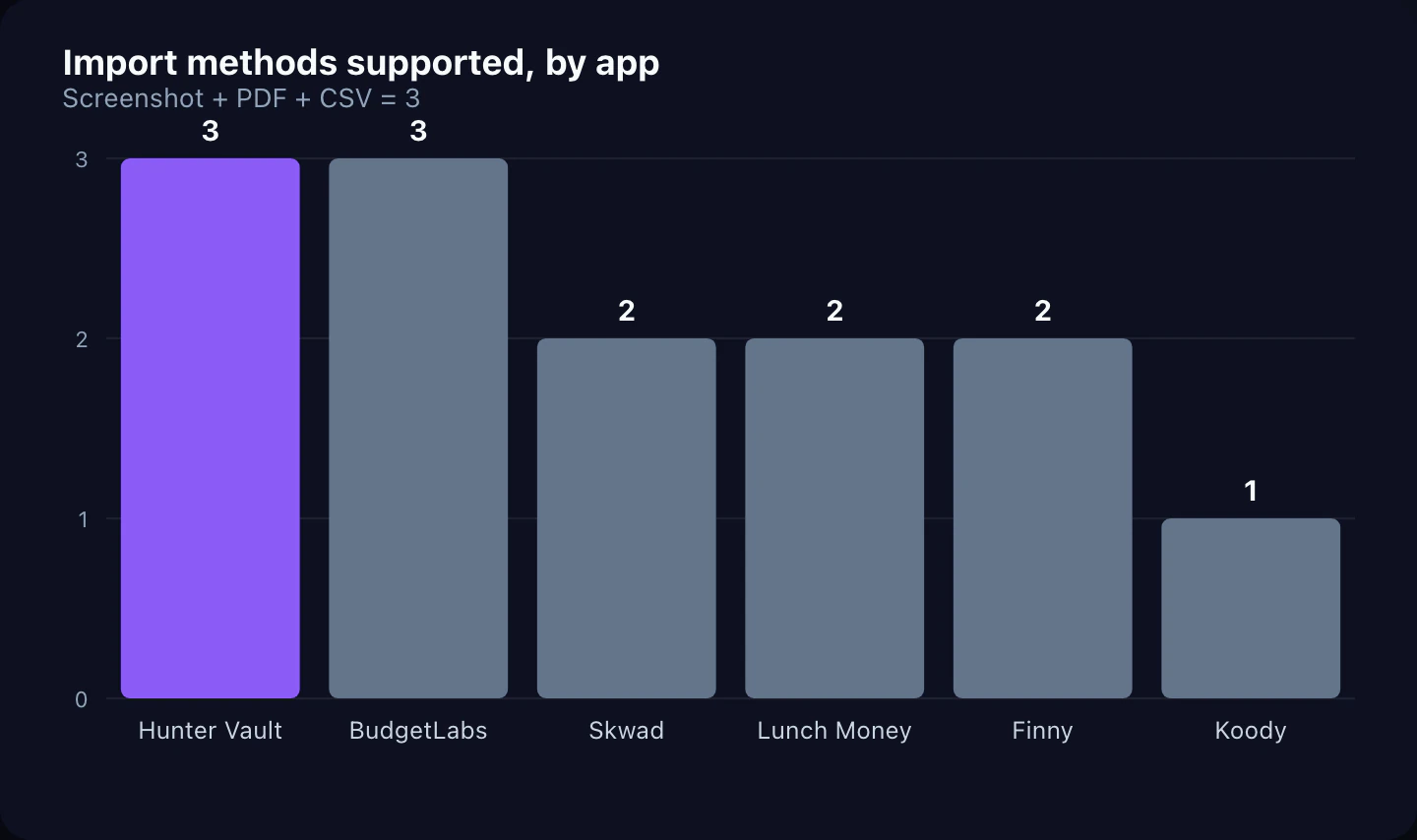
A few patterns stand out. CSV import is nearly universal — it’s the baseline. PDF is common. Full screenshot support is rarer, and apps offering all three methods in one flow are the exception rather than the rule.
Hunter Vault: All Three Methods, Plus the Habit
I build Hunter Vault, so treat this as the informed-but-interested section. What makes its Smart Import approach distinct is that it covers all three methods — screenshot, PDF, and CSV — in a single, reviewed flow, and then connects to the part most import tools ignore: the habit.
- CSV is processed on-device and free, in line with private, offline budgeting
- Screenshots and PDFs use AI reading (credits), with the cost shown upfront and PDF passwords handled locally
- Every import is reviewed — editable drafts, filter tabs for all/ready/needs-review/duplicates, and duplicate detection built in
- After importing, you can ask Huntee, the in-app AI assistant, questions about what just landed — “what were my biggest expenses last month?”
The real differentiator is the layer around import: because Hunter Vault is built around quests, XP, and streaks, catching up isn’t the end of the story — it drops you into a system designed to keep you logging consistently afterward. Import power gets you current; the habit layer keeps you there.
The apps that only import risk recreating the passive relationship with money that manual budgeting is supposed to fix. Getting caught up is step one. What keeps you from falling behind again is a daily habit you’ll actually repeat — which is why habit support matters as much as import features.
The Other Options, Honestly
Each of the other tools is a reasonable pick depending on your needs:
BudgetLabs leans hard into AI statement import and is explicit that it never sees bank credentials. A strong choice if AI-read statements are your main method.
Skwad focuses on turning PDF statements into structured data and deletes uploaded files after reading — a good fit if PDF is your primary source and file deletion reassures you.
Lunch Money supports CSV and PDF import and also offers optional bank sync, so it suits someone who wants file import now but might connect a bank later.
Koody is CSV-centric with strong cleanup, deduplication, and batch-editing tools — ideal if you export CSVs regularly and want them tidied automatically.
Finny emphasizes fast capture via screenshots and receipts, good for someone who logs on the go rather than catching up in bulk.
None of these is wrong. Match the tool to the method your bank supports and the workflow you’ll actually keep.
How to Choose in Practice
Put it together with a simple flow:
- Check your bank’s exports. CSV available? Prioritize apps with strong on-device CSV handling.
- Identify your main method. Catching up on months → PDF matters. E-wallet only → screenshot matters.
- Decide how much habit help you need. If forgetting is your real blocker, weight gamification and progress features heavily.
- Verify the privacy specifics. Read the current privacy notice and confirm CSV stays on-device.
Do that, and the “best app” stops being a leaderboard question and becomes a fit question — which is the only version that matters.
This is general educational content, not financial advice, and app details change over time. Verify current features, pricing, and privacy practices with each provider before deciding. If you’re dealing with serious debt or financial hardship, consider speaking with a qualified financial professional.
Final Takeaway
Importing transactions without bank sync is no longer a niche workaround — several capable apps support it, and they work with any bank that can produce a file. CSV is the private baseline, PDF handles bulk catch-up, and screenshot covers the accounts nothing else reaches.
Pick based on the methods your bank supports and whether you need help making the habit stick. If you want all three import paths plus a system built to keep you logging afterward, try Hunter Vault’s Smart Import.
Frequently Asked Questions
Can you import transactions into a budget app without linking your bank?
Yes. A growing number of budget apps let you import from a file — a CSV export, a PDF statement, or a screenshot — instead of connecting your bank through a live feed. The app reads the file and extracts the transactions. There’s no bank login involved, which is why people who avoid bank-linking on privacy grounds prefer these tools.
Which is the most private way to import transactions?
A CSV export processed on-device is the most private method, because the data never leaves your phone. Apps that process CSVs locally and store your data on-device — rather than uploading everything to the cloud — offer the strongest privacy. Screenshots and PDFs need to be uploaded for AI reading, so they’re less private than CSV even in a privacy-focused app.
Do these apps still work if my bank isn’t supported?
That’s exactly where they shine. Bank-sync apps only work with banks their data provider covers. File-import apps work with any bank that can produce a statement, PDF, or CSV — and any account you can screenshot. If your bank or e-wallet isn’t supported by sync-based apps, importing is the reliable alternative.
Are import-based budget apps free?
Many offer free CSV import because it’s processed on-device with no AI cost. Screenshot and PDF imports often use credits or a subscription because AI reading has a real processing cost. Pricing models vary, so check whether the method you’ll use most is free or paid before committing.
What should I look for in a no-bank-sync budget app?
Look for the import methods you’ll actually use (CSV, PDF, screenshot), on-device processing for CSV, a clear privacy notice, a review step before saving, and duplicate detection. If you also want the habit to stick, features like progress tracking or gamification help more than raw import power alone.